> For the complete documentation index, see [llms.txt](https://docs.a-pay.one/llms.txt). Markdown versions of documentation pages are available by appending `.md` to page URLs; this page is available as [Markdown](https://docs.a-pay.one/faq/a-pay-merchant-portal/interface/common-actions.md).
# Common Actions
This section describes the functions that are available throughout the personal account, regardless of the current page
Global search
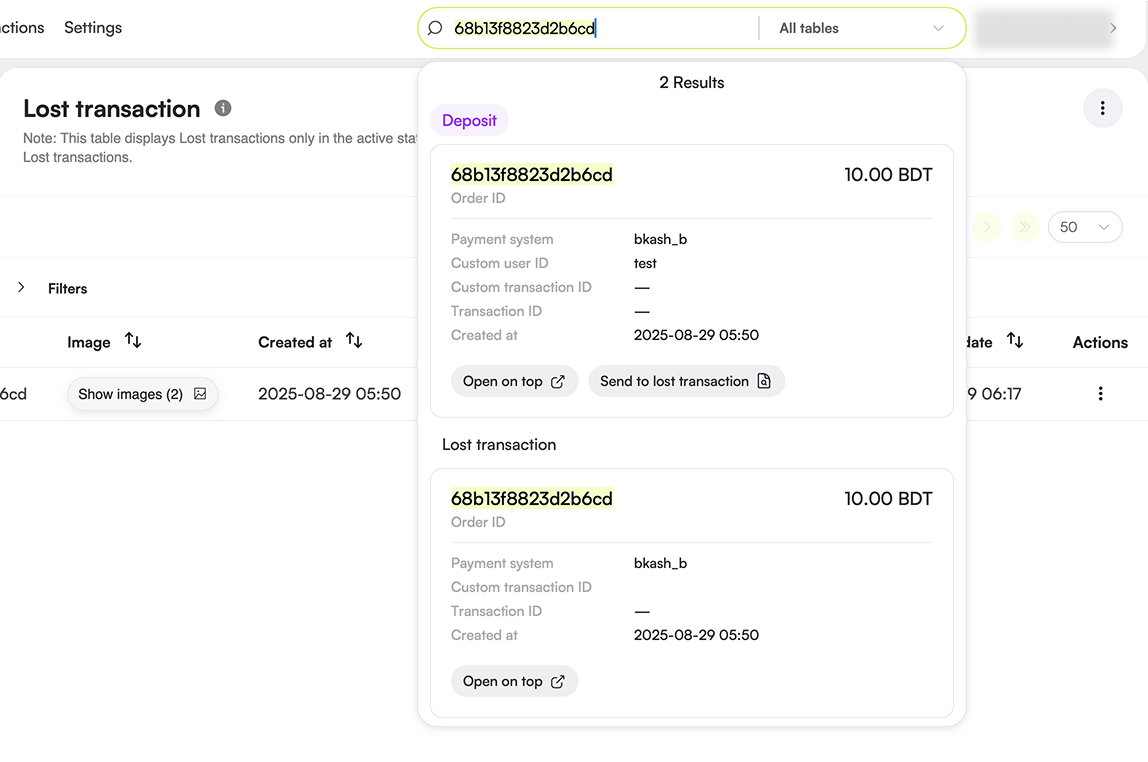
The **global search** allows you to search for a transaction across the entire system, rather than within a specific table.
* The search bar is located in the top-right corner of the screen.\

* Click the bar and start typing a value, or paste a copied value.
* To search within a specific table, use the dropdown list to the right of the search bar and select the table.\

**You can search by the following parameters:**
* Payment system
* Currency
* Order ID
* Transaction ID
* Wallet ID
**Search results include:**
* The number of matching records.
* The name(s) of the table(s) containing matches.
* Open on top button – opens an overlay with transaction details.\

* **Send to lost transaction** button (only if the record is found in the *Deposit* table) – opens a form to create a lost transaction issue. *(See the separate* [*guide on creating a lost transaction issue*](/faq/a-pay-merchant-portal/interface/transactions/lost-transaction.md#creating-a-lost-transaction-request)*)*
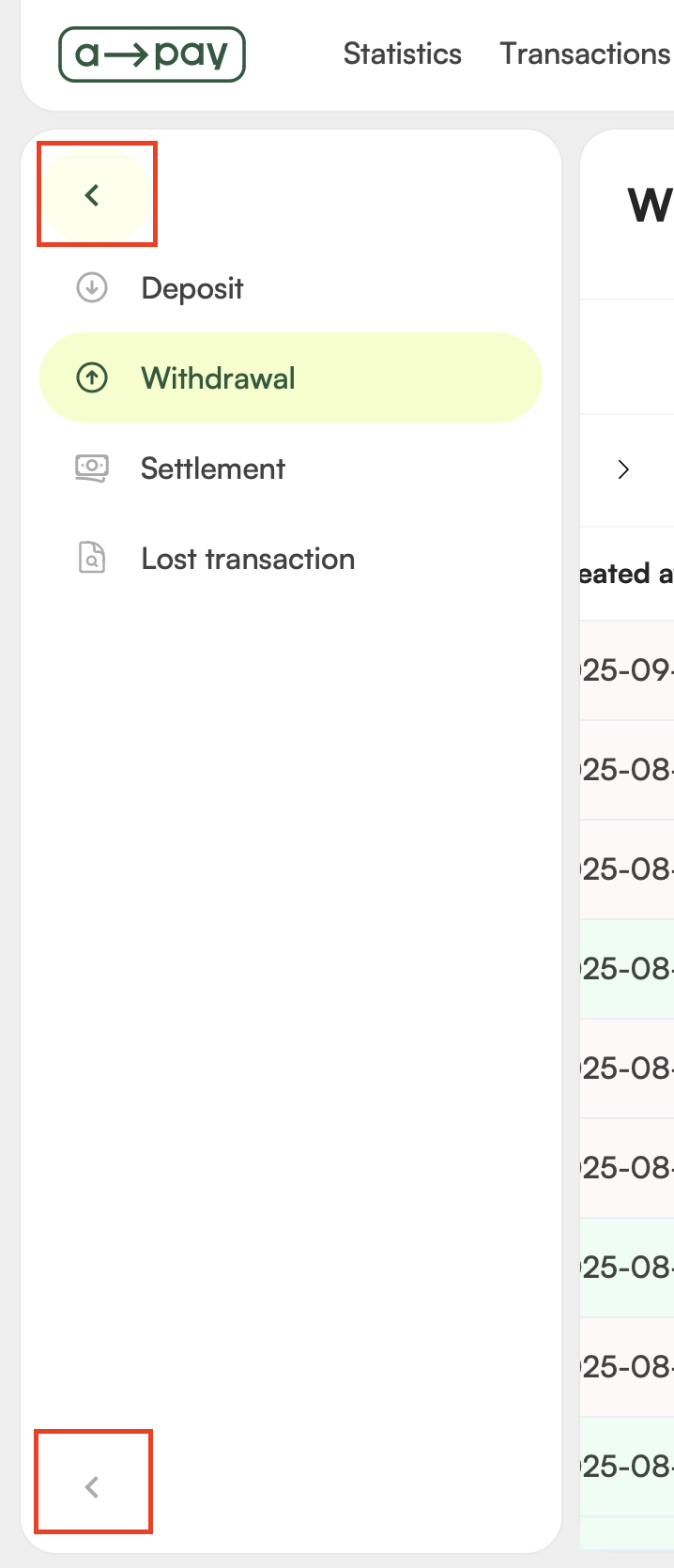
Hide or Show the Sidebar Menu
* Click the arrow icon at the top or bottom of the sidebar to collapse it.
* Click the arrow again to expand it.
Switching Between Projects
You can switch between projects to:
* View transactions for a specific project in the **Transactions** section.
* Change settings for a specific project in the **Settings** section.
To switch projects:
1. Click your **login name** in the top-right corner.
2. Click the **current project name**.
3. Select the desired project from the dropdown list.\

> **Note:** The selected project does not affect the charts in the Statistics section and projects on My projects page. Use the Project filter there to display data by project.
Account Settings
Click your login name in the top-right corner to:
* Change the interface language.
* Change your account password.
* Open documentation or start a chat with our support team.
Two-Factor Authentication (2FA)
## **Two-Factor Authentication (2FA)**
Two-factor authentication (2FA) adds an extra layer of security to your account. Once enabled, you'll need to enter a code from an authenticator app on your phone in addition to your login and password each time you sign in.
### **Setting up 2FA**
1. Log in to your personal account using your login and password.
2. You'll see the **Set up two-factor authentication** screen, marked *"Required for your account"*.
3. Install any TOTP-compatible authenticator app on your phone (for example, Google Authenticator, Authy, or similar).
4. In the app, scan the QR code shown on the screen. If you can't scan it, enter the secret key below the QR code manually instead. Using the same secret key, you can link the TOTP code to several devices at once — useful if more than one person needs access to the account.
5. The app will start generating a 6-digit code that refreshes every 30 seconds.
6. Enter the current code in the field on the screen and click **Activate**.
7. You have 30 minutes to complete setup — if you don't finish in time, you'll need to start over.
Once activated, you'll get access to your personal account.
### **Signing in with 2FA**
After setup, every time you log in — following your login and password — you'll be asked to enter a code from your authenticator app (**Enter verification code** screen). Open the app, check the current code, enter it, and click **Verify**.
* You have 5 minutes and up to 5 attempts to enter the code per login. After 5 incorrect attempts, you'll need to log in again — login, password, and a new code.
* A code that's already been used can't be entered again — wait for the app to generate a new one.
**Lost access to your authenticator app?**
Contact support — they'll reset your current setup, and you'll be able to set up 2FA again (steps above) with a new device.
Working with Tables and Filters
Many pages display data in table format. In each table, you can:
* **Show or hide the filter panel** – click the panel header.
* **Apply filters** – set filter values and click **Apply**.\

* **Reset all filters** – click **Reset all filters**.
* **Sort column values** – click the arrow icon in the column header.\

* **Set the number of rows per page** – choose from the page size dropdown.\

* **Show or hide table columns**:
1. Click the **⋮** (three vertical dots) icon in the top-right corner of the table.
2. Select **Column Settings**.\

3. Adjust column visibility in the dropdown list.\

* **Export data from tables:**
1. Select the rows you want to export.
2. Click the **⋮** (three vertical dots) icon in the top-right corner of the table.
3. Select **Actions** → **Export filtered rows**.
4. Download your file.\

{% hint style="info" %}
**Note:** You can re-download your file from the Exports tab.
{% endhint %}